Product
Business Email that respects your domain
Orvix runs professional mail on domains you own: verified ownership, tracked provisioning, independently checked DNS, and mailboxes your team reaches through Webmail.
Start with a domain you own
No Orvix subdomain games: your addresses live on your domain from the first mailbox.
- Add your domain. Enter the domain in the portal; Orvix normalizes and validates it server-side.
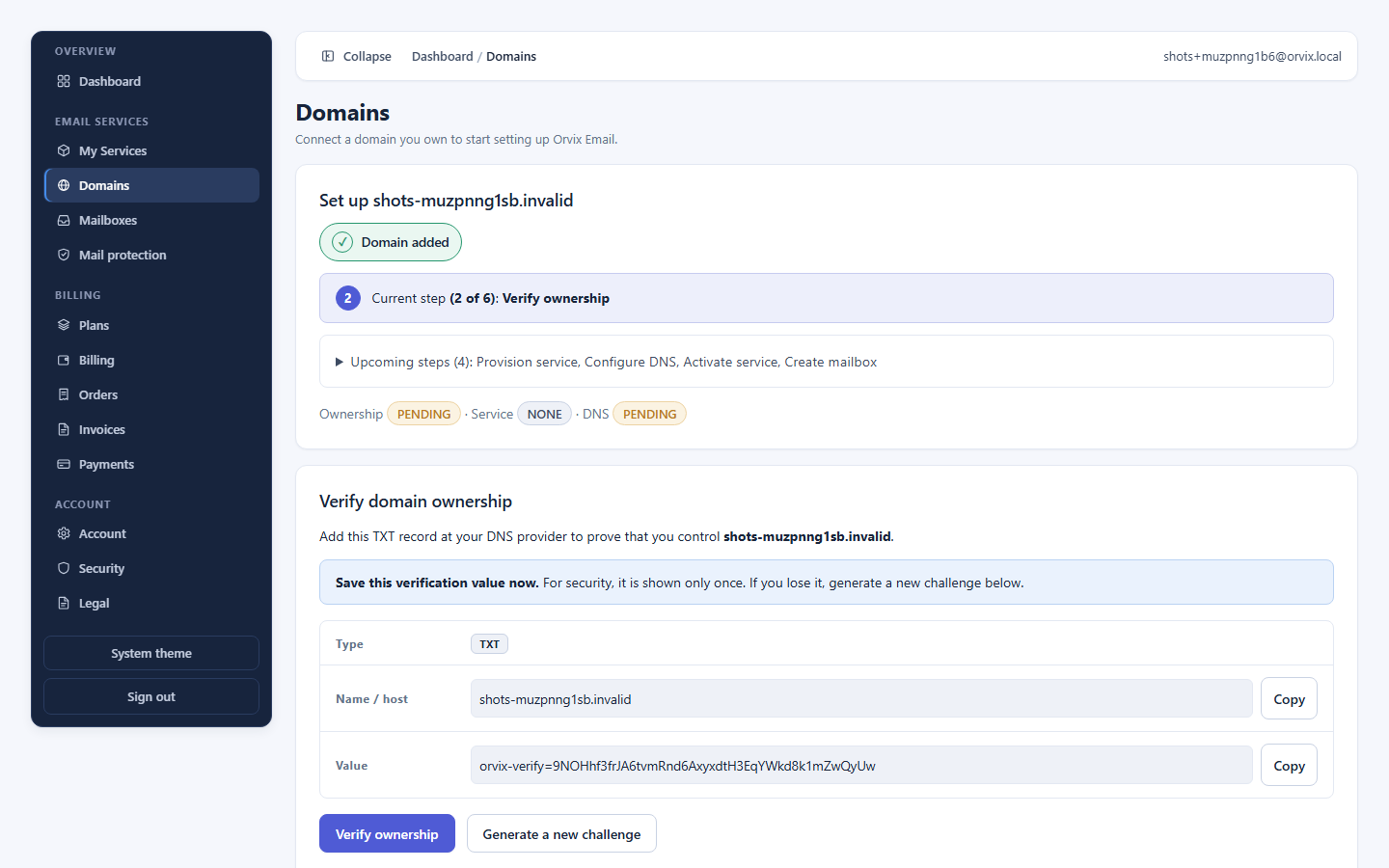
- Prove control once. Publish one TXT record carrying your verification value, then ask Orvix to check.
- Watch real states. Pending, checking, verified, or record-not-found — the backend decides, the UI reports.
Provisioning you can watch
Service setup runs as a durable, idempotent job — safe to retry, impossible to half-finish silently.
Guarded preconditions
Provisioning only starts for your own verified domain with a valid plan selection. Skipping steps is not possible.
Visible progress
Queued, running, needs-attention, or done — the portal shows the job state instead of a spinner of mystery.
Safe retries
Transient failures retry without duplicating work; replays never create second services or second trials.
DNS setup without guesswork
Orvix shows the exact records your domain needs, then verifies what the public internet actually sees.
What you publish
The portal lists each required record — type, host, value, priority where applicable — with copy buttons for long TXT values. You add them at your DNS provider, whoever that is.
What Orvix checks
Orvix resolves your domain independently and compares live answers to the expected set. Pending, verified, missing, and mismatch each get their own state and guidance — propagation delays included.
Mailboxes for the whole team
Create addresses per domain from the portal. Mailbox passwords travel a short-lived handoff and are never stored.
Create in seconds
Pick a domain, choose the local part, set a password. No internal IDs, no server names to know.
See what you own
Every mailbox shows its domain, state, and quota where the service reports it.
Remove deliberately
Deletion needs typed confirmation of the full address, and warns about server-side mail data.
Run it without reading manuals
Service state, trial status, mailbox counts, and the next action — in words, not UUIDs.
| You see | It means | Your next step |
|---|---|---|
| Needs ownership check | Domain added, TXT record not yet found | Publish the TXT record, then verify |
| Ready to provision | Ownership verified, service not yet created | Provision the email service |
| Needs DNS records | Service provisioned, mail DNS not yet live | Publish records, then check DNS |
| Active · trial running | Service live, trial counting from activation | Create mailboxes, open Webmail |
Trial begins at activation
Your 5-day trial starts when you activate it — not when you sign up, verify your email, choose a plan, or add a domain.
Create your account
Sign up and verify your email address. This identifies you — it does not start your trial.
Choose a plan
Pick the plan that fits your team. Saving a plan starts nothing — billing comes later.
Start your trial or check out
Activate the 5-day free trial to unlock setup now, or buy your plan to unlock the full service.
Add and verify your domain
Connect a domain you own and prove control with a DNS TXT record.
Provision, DNS, mailboxes
Orvix provisions your mail service, shows the exact DNS records to publish, then you create mailboxes.
Business Email questions
What do I need before I start?
A domain you control (for the TXT verification record) and an email address for your Orvix account. No servers, no software to install.
Who verifies my DNS?
You publish the records Orvix shows you at your DNS provider; Orvix then checks public DNS independently. Records are marked verified only when they actually resolve.
Can I remove a domain or mailbox later?
Yes, from the portal with typed confirmation. Domains that still have mailboxes are protected from accidental removal, and history is retained for audit.
When does my trial start?
When you activate it from Plans — after account verification. Signup, verification, plan selection, and adding a domain never start it.
Put your domain to work
Five guided steps stand between you and your first professional inbox. Setup is free; the trial starts at activation.